The construction material tracking Excel template gives contractors a unified view of current material requirements for each job, deviations from the original bid, and comparisons with purchased, received, used, and on-hand inventory. Contractors import and preserve the original takeoff, log changes, and revised material quantities are automatically reflected in the revised material requirements list.
This template can be used as a standalone Excel material tracker, or it can be connected to QR Inventory software for comparing requirements with actual jobsite inventory deliveries, usage, availability, and costs.
Primary purpose: Track takeoff revisions through project execution, preserving original takeoff as a baseline. Compare current material requirements to the original bid, reconcile with actual jobsite inventory deliveries, usage and availability.
Best for: Contractors and skilled trades (HVAC, Plumbing, Electrical, Lighting) working on commercial construction projects.
File type: Excel workbook in .xlsx format.
Construction project structure: One workbook per project.
Starting point: Existing material takeoff list.
Continuous change tracking: Tracking of every material requirement change with reason and status.
Main output: A separate revised quantities list, planned vs current costs, estimated remaining cost forecast.
Inventory connection: Comparison of revised material list with actual jobsite inventory deliveries, usage and availability. Optional QR Inventory conection to automatically import inventory data into the Excel spreadsheet through Power Query.
This construction material tracking template connects the original takeoff, approved material changes, current project requirements, and actual inventory activity - so you can answer the following questions at any time:
Instead of piecing together changes from disconnected notes, emails, and spreadsheets, the template brings entire project materials activity, from takeoff through project execution,
into one reliable document - helping project managers, purchasing, and warehouse teams work from the same up-to-date information.
Job Material Workbook Workflow And Usage Instructions
Each spreadsheet tab represents a different stage of the construction materials management workflow. Together, they allow contractors to track materials and costs through every project stage, from the original bid through completion, while comparing estimated material requirements with actual quantities and costs.
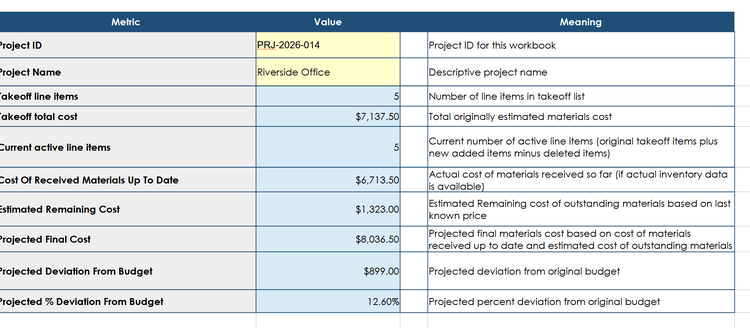
Settings serves as the project summary and control page. It displays key totals from the other spreadsheets, including the original takeoff cost, current approved material budget, actual material cost to date, estimated remaining purchase cost, and projected deviation from budget.
Enter the project ID and project name - everything else is calculated automatically.
Material counts, original and current budget totals, approved budget changes, actual costs, price deviations, estimated remaining costs, and projected final costs update automatically as information changes in the other workbook spreadsheets.
This spreadsheet records the initial quantities estimated from project specifications before work begins, serving as a baseline.

A_Takeoff stores the original material requirements for the project. It preserves the quantities, descriptions, units of measure, cost codes, and estimated unit costs that were known when the project bid was approved.
Enter or paste each material line item, including its unique Item ID, description, category, cost code, unit of measure, original quantity, estimated unit cost, and any optional notes or dates included in the workbook.
When importing an existing construction takeoff, arrange the source columns in the required order and use Paste Special > Values Only. Do not paste source formulas, formatting, or calculated total-cost columns.
The workbook calculates the original total cost for each item, identifies duplicate Item IDs, and displays the original takeoff items automatically in the current materials list.
Use A_Takeoff during initial project setup. Use A_Takeoff during initial project setup. Once the project begins, freeze the spreadsheet to preserve it as the original baseline. Record all later quantity revisions, price changes, additions, and removals in the B_Changes spreadsheet.
After the takeoff has been reviewed and frozen, do not revise original quantities, prices, or descriptions to reflect later project changes. Record all later additions, reductions, removals, replacements, and cost changes in B_Changes so the original baseline remains available for comparison.
This spreadsheet acts as an audit trail for design modifications, field extras, or value engineering. Every row represents a variance altering the original takeoff.

B_Changes records individual material change events. Changes can increase or decrease a required quantity, add a new material, remove an item, or document a material replacement. The same Item ID may appear in multiple change rows, creating a complete history of requirement changes during the project.
Enter the change date, status, change type, Item ID, quantity change, estimated unit cost when required, reason for the change, and approval information. Use a positive quantity for increases and additions and a negative quantity for decreases, removals, and replacement-out entries.
After you enter an Item ID, the spreadsheet automatically retrieves item details from the takeoff list - you can leave them as is or overwrite. The estimated cost effect of the change is calculated automatically.
Only rows with an Approved status update C_Current_Materials. Pending, Rejected, and other non-approved changes remain visible in the change history but do not alter current project requirements.
Use B_Changes whenever the required material quantity or estimated cost changes after the original takeoff has been frozen. Record the change here rather than modifying the original takeoff.
Auto-generated from original takeoff, revisions log, and current jobsite inventory data this spreadsheet represents a master material requirements and reconciliation dashboard.

C_Current_Materials is the live construction materials list. It shows the original requirement, approved quantity changes, current required quantity, current material budget, received and used quantities, remaining purchasing needs, actual costs, and projected final cost.
It also highlights possible inconsistencies, such as received or used quantities exceeding the current requirement, negative quantities, missing purchase costs, or projected costs exceeding the approved material budget.
For normal workbook operation, you do not enter or paste material rows into this spreadsheet. The list is created automatically from A_Takeoff and approved entries in B_Changes.
Use C_Current_Materials whenever you need to determine what materials the project currently requires. It is the primary working view for comparing approved requirements with purchasing, receiving, usage, quantities on the job, and actual material costs.

D_Actual_Inventory_Data provides the actual inventory and purchasing data consumed by C_Current_Materials. It connects the workbook’s current requirement calculations with real project activity.
When using the workbook independently, enter or paste the available project inventory data, including Item ID, quantities received, quantities used, quantities currently on the job, and actual purchase costs.
When using workbook with QR Inventory construction materials management software, use an API endpoint to automatically import real-time inventory data into the spreadsheet.
After the spreadsheet has been connected to a QR Inventory API endpoint, do not manually edit the Power Query output. A refresh can replace the imported table with the latest data returned by the endpoint.
